1. 템플릿 엔진
>> 지정된 템플릿 양식과 데이터가 합쳐저 HTML 문서를 출력하는 소프트웨어
* 서버 템플릿 엔진 vs 클라이언트 템플릿 엔진
| 서버 템플릿 엔진 | 클라이언트 템플릿 엔진 | |
| 종류 | JSP, Freemarker | React.js, Vue.js |
| 구동 위치 | 서버 | 브라우저 |
| 화면 생성 | JAVA 코드 > 문자열 생성 > HTML 변환 > 브라우저 전달 |
Json or Xml 형식의 데이터만 전달 > 클라이언트에서 조립 (서버에서 이미 코드가 벗어난 경우) |
| 실행 | WAS에서 실행(새로고침 필요o) | 웹 브라우저에서 실행(새로고침 필요x) |
| 언어 | 자바 문법 | 자바스크립트 언어 |
2. Mustache (머스테치)
: 수많은 언어를 지원하는 가장 심플한 템플릿 엔진
- 필요에 따라 서버 템플릿 엔진 혹은 클라인언트 템플릿 엔진으로 모두 사용할 수 있다.
- 장점 : 문법 체크, HTML 문법 지원, 자동완성
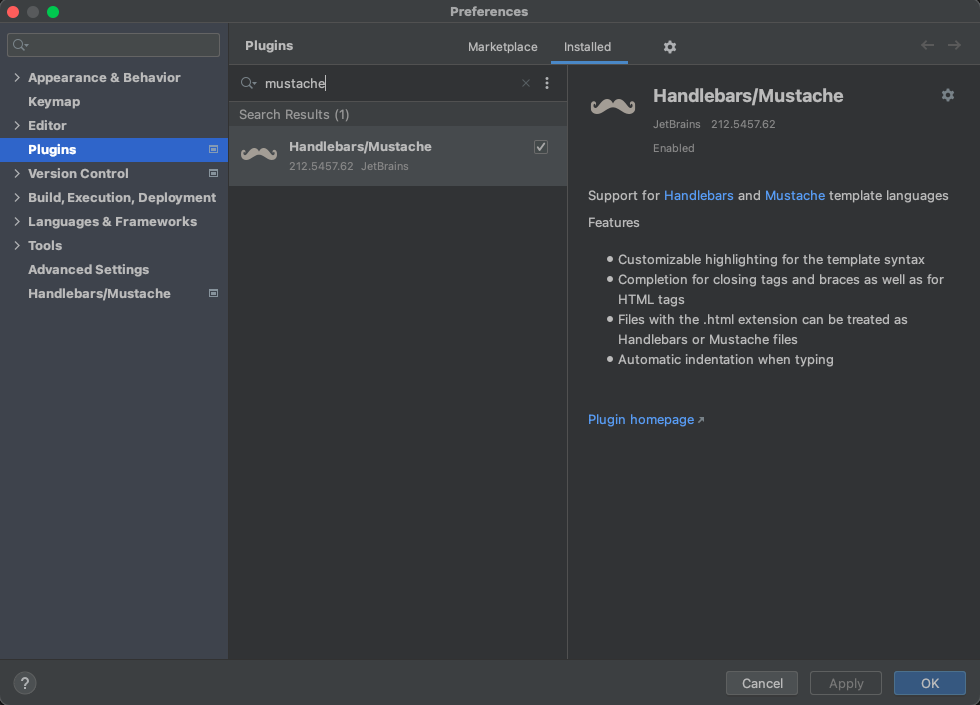
1) 설치
max os : command + shift + a
윈도우 : Ctrl + Alt + S
>> plugins >> mustache >> 설치
- mustache 의존성 등록
>> build.gradle에 추가
implementation 'org.springframework.boot:spring-boot-starter-mustache'
2) 기본 페이지 생성
기본 경로 >> src/main/resources/template
첫 페이지 경로 >> src/main/resources/template/index.mustache
2-1) index 머스테치 생성
<!DOCTYPE HTML>
<html>
<head>
    <title>스프링 부트 웹서비스</title>
    <meta http-equiv="Content-Type" content="text/html; charset=UTF-8" />
</head>
<body>
    <h1>스프링 부트로 시작하는 웹 서비스</h1>
</body>
2-2) URL 매핑
경로 >> src/main/java/com/project/spring/springboot/web/IndexController
import org.springframework.stereotype.Controller;
import org.springframework.web.bind.annotation.GetMapping;

@Controller
public class IndexController {

    @GetMapping
    public String index() {
        return "index";
    }
}
>> 머스테치 스타터 덕분에 컨트롤러에서 문자열을 반환할 때 앞의 경로와 뒤의 파일 확장자는 자동으로 지정됨
- 경로 : src/main/resources/templates
- 파일 확장자 : .mustache
>> src/main/resources/templates/index.mustaches 로 전환되어 View Resolver 가 처리하게 됩니다.
- View Resolver : URL 요청의 결과를 전달할 타입과 값을 지정하는 관리자 격으로 볼 수 있습니다.
2-3) IndexController Test
경로 >> src/test/java/com/project/spring/springboot/web/IndexControllerTest
import org.junit.Test;
import org.junit.runner.RunWith;
import org.springframework.beans.factory.annotation.Autowired;
import org.springframework.boot.test.context.SpringBootTest;
import org.springframework.boot.test.web.client.TestRestTemplate;
import org.springframework.test.context.junit4.SpringRunner;

import static org.assertj.core.api.AssertionsForClassTypes.assertThat;
import static org.springframework.boot.test.context.SpringBootTest.WebEnvironment.RANDOM_PORT;

@RunWith(SpringRunner.class)
@SpringBootTest(webEnvironment = RANDOM_PORT)
public class IndexControllerTest {

    @Autowired
    private TestRestTemplate restTemplate;

    @Test
    public void 메인페이지_로딩() {
        // when
        String body = this.restTemplate.getForObject("/", String.class);

        // then
        assertThat(body).contains("스프링 부트로 시작하는 웹 서비스");
    }

}
- TestRestTemplate를 통해 "/" 로 호출했을 때 index.mustache 에 포항된 코드들이 있는지 확인하면 된다.
2-4) IndexController 브라우저 확인
>> Application.java 의 main 메소드 실행 >> http://localhost:8080 으로 접속

3. 게시글 등록 화면 만들기
3-1) 부트스트랩, 제이쿼리 사용하기
방법 1. 외부 CDN 사용하기
방법 2. 직접 라이브러리를 받아서 사용
3-2) 레이아웃 사용하기
>> 공통 영역을 별도의 파일로 분리하여 필요한 곳에서 가져다 사용하는 방식
1) header.mustache
경로 >> src/main/resources/templates/header.mustache
<!DOCTYPE HTML>
<html>
<head>
    <title>스프링부트 웹서비스</title>
    <meta http-equiv="Content-Type" content="text/html; charset=UTF-8" />

    <link rel="stylesheet" href="https://stackpath.bootstrapcdn.com/bootstrap/4.3.1/css/bootstrap.min.css">
</head>
<body>
* css가 헤더(header)에 존재하는 이유
: css가 HTML의 형태 등을 꾸며주기 때문에 header에 없을 경우 페이지 전체가 깨질 수 있기 때문
2) footer.mustache
경로 >> src/main/resources/templates/footer.mustache
<script src="https://code.jquery.com/jquery-3.3.1.min.js"></script>
<script src="https://stackpath.bootstrapcdn.com/bootstrap/4.3.1/js/bootstrap.min.js"></script>

</body>
</html>
* footer 에 js를 놓는 이유
: 페이지 로딩 속도를 높이기 위해
>> HTML은 위에서부터 코드가 실행되기 때문에 용량이 큰 js를 footer에 놓는다.
* jQuery가 bootstrap보다 앞에 있는 이유
: bootstrap.js는 반드시 제이쿼리가 있어야하기 때문
위와 같이 layout을 설정해 놓은 후 index.mustache에 layout을 설정해놓는다.
-- 기존 index.mustache --

<!DOCTYPE HTML>
<html>
<head>
    <title>스프링 부트 웹서비스</title>
    <meta http-equiv="Content-Type" content="text/html; charset=UTF-8" />
</head>
<body>

    <h1>스프링 부트로 시작하는 웹 서비스</h1>

</body>


-- 변경된 index.mustache --
<!DOCTYPE HTML>
<html>
<head>
    <title>스프링 부트 웹서비스</title>
    <meta http-equiv="Content-Type" content="text/html; charset=UTF-8" />
</head>
<body>
    {{>layout/header}}
    <h1>스프링 부트로 시작하는 웹 서비스</h1>
    {{>layout/footer}}
</body>
3-2) 글 등록 버튼 추가
경로 >> src/main/resource/templates/index.mustache
<!DOCTYPE HTML>
<html>
<head>
    <title>스프링 부트 웹서비스</title>
    <meta http-equiv="Content-Type" content="text/html; charset=UTF-8" />
</head>
<body>
    {{>layout/header}}
    <!-- <h1>스프링 부트로 시작하는 웹 서비스</h1> -->
    <h1> 스프링 부트로 시작하는 웹 서비스 Ver.2 </h1>

    <div class="col-md-12">
        <div class="row">
            <div class="col-md-6">
                <a href="/posts/save" role="button" class="btn btn-primary">글 등록</a>
            </div>
        </div>
    </div>
    {{>layout/footer}}
</body>
- <a> 태그를 이용해 글 등록 페이지로 이동하는 글 등록 버튼 생성
- 이동할 페이지 주소 : /posts/save
이 주소에 해당하는 컨트롤러를 생성
경로 >> src/main/java/com/project/spring/springboot/web/IndexController
import org.springframework.stereotype.Controller;
import org.springframework.web.bind.annotation.GetMapping;

@Controller
public class IndexController {

    @GetMapping
    public String index() {
        return "index";
    }

    // 등록 추가
    @GetMapping("/posts/save")
    public String postsSave() {
        return "posts-save";
    }
}
실행을 시키면 아래와 같이 ' 글 쓰기' 목록이 생긴 것을 확인할 수 있음

다음으로는 게시글 등록 버튼을 눌렀을 때 게시글 등록 페이지로 이동한 모습을 구현해 보겠습니다.
3-3) 글 등록 페이지
경로 >> src/main/resources/templates/posts-save.mustache
{{>layout/header}}

<h1>게시글 등록</h1>

<div class="col-md-12">
    <div class="col-md-4">
        <form>
            <div class="form-group">
                <label for="title">제목</label>
                <input type="text" class="form-control" id="title" placeholder="제목을 입력하세요">
            </div>
            <div class="form-group">
                <label for="author"> 작성자 </label>
                <input type="text" class="form-control" id="author" placeholder="작성자를 입력하세요">
            </div>
            <div class="form-group">
                <label for="content"> 내용 </label>
                <textarea class="form-control" id="content" placeholder="내용을 입력하세요"></textarea>
            </div>
        </form>
        <a href="/" role="button" class="btn btn-secondary">취소</a>
        <button type="button" class="btn btn-primary" id="btn-save">등록</button>
    </div>
</div>

{{>layout/footer}}
위와 같이 페이지를 만든 후 작동을 시켜보면 아래와 같이 게시글 등록하는 페이지를 볼 수 있습니다.

하지만, 아직 게시글 등록 화면에 등록 버튼은 기능이 없습니다.
이는 API를 호출하는 JS가 전혀 없기 때문입니다. 그래서 src/main/resources에 static/js/app 디렉토리를 생성합니다.
3-4) index.js 생성
경로 >> src/main/resources/static/js/app/index.js
var main = {
        init : function () {
            var _this = this;
            // 생성
            $('#btn-save').on('click', function () {
                _this.save();
                });
        },

        save : function () {
            var data = {
                title: $('#title').val(),
                author: $('#author').val(),
                content: $('#content').val()
            };

            $.ajax({
                type: 'POST',
                url: '/api/v1/posts',
                dataType: 'json',
                contentType: 'application/json; charset=utf-8',
                data: JSON.stringify(data)
            }).done(function() {
                alert('글이 등록되었습니다.');
                window.location.href = '/';     // 글 등록 성곡시 메인페이지(/)로 이동
                }).fail(function (error) {
                alert(JSON.stringify(error));
            });
        }
};

main.init();
마지막으로 생성된 index.js를 머스테치 파일이 쓸 수 있게 footer.mustache 에 추가합니다.
<script src="https://code.jquery.com/jquery-3.3.1.min.js"></script>
<script src="https://stackpath.bootstrapcdn.com/bootstrap/4.3.1/js/bootstrap.min.js"></script>

<!--index.js 추가-->
<script src="/js/app/index.js"></script>
</body>
</html>
- index.js 호출 코드의 시작은 반드시 : /
- 스프링 부트 : src/main/resources/static 에 위치한 자바스크립트, CSS, 이미지 등 정적 파일들은 URL에서 /로 설정됨

'Spring > 스프링 부트와 AWS로 혼자 구현하는 웹 서비스' 카테고리의 다른 글
| (IntelliJ) 게시글 수정 화면 만들기 (0) | 2021.11.09 |
|---|---|
| (IntelliJ) 전체 조회 화면 만들기 (0) | 2021.11.09 |
| (IntelliJ) JPA Auditing으로 생성/수정 시간 자동화 (0) | 2021.11.04 |
| (IntelliJ) H2 Console 사용 방법 (0) | 2021.11.02 |
| (IntelliJ) 수정 API 만들기 (0) | 2021.11.01 |